How to Manage Client Emails Without Missing Important Messages
Learn how to organize client email, stay on top of follow-ups, and spend less time checking your inbox.
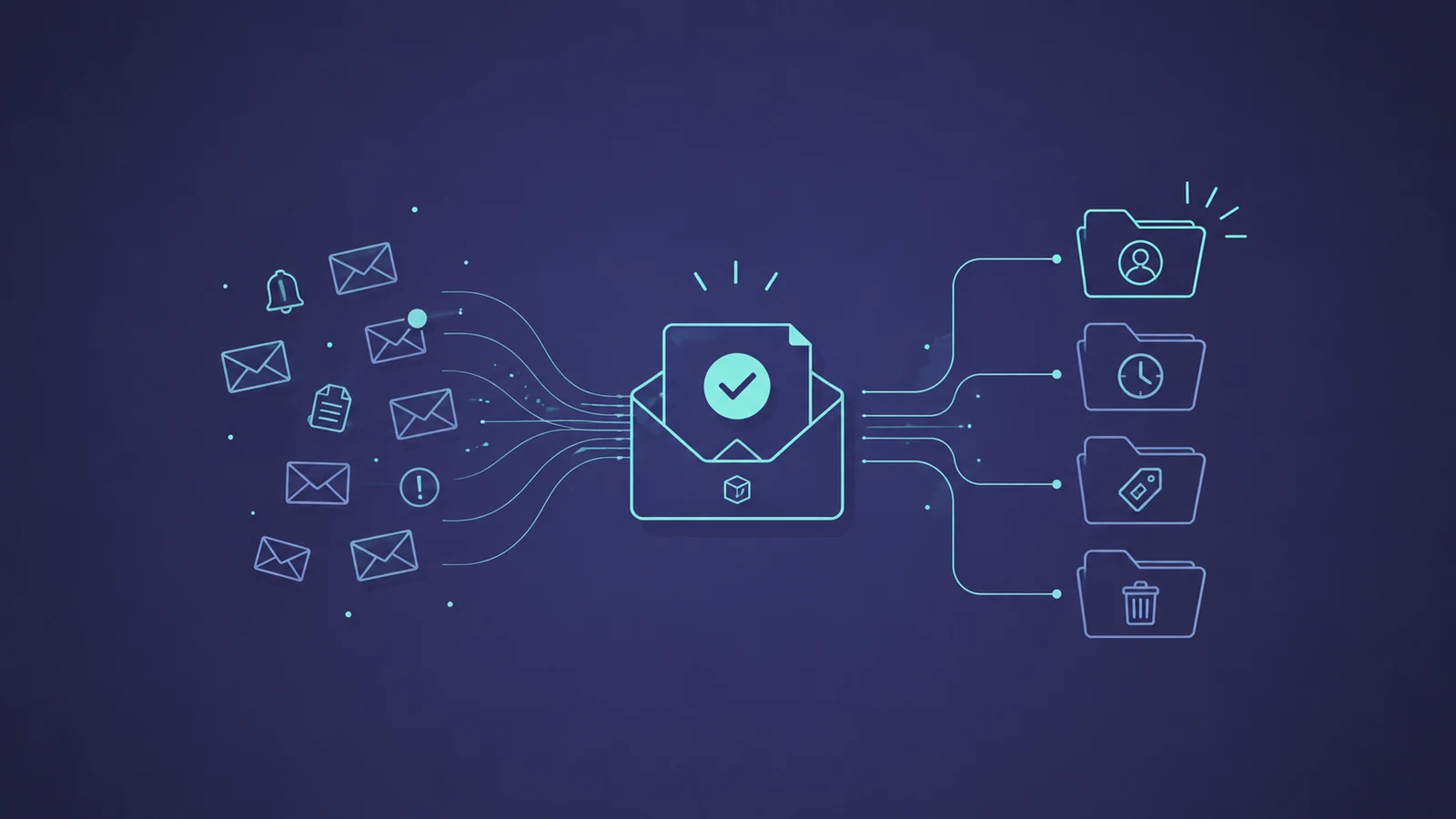
For small businesses, a disorganized inbox doesn’t just waste your time — it can make you miss memos, damage client relationships, and lose out on revenue.
Disclosure: this is a sponsored post from SaneBox, and some links are partner links.
Let’s say you open your inbox, see an email from a client, and think, “I’ll deal with that in a minute.” If you receive a lot of email, it’s all too easy for a VIP sender to get lost in the chaos as newsletters and notifications flood in, along with innocent-looking “quick questions” that distract you from your biggest priorities.
By the time you remember your client email, it’s just in time to discover that they have already followed up, asking whether you saw their message yet.
But you can keep VIPs sweet and make important messages much harder to miss. Here are five practical tips for managing client emails — plus a couple of tools that can take some of the work off your plate.
The Email Distraction Trap
Missing an important email can have big consequences for a small business, and this can drive business owners to check email more often. In reality, this just turns your inbox into a game of whack-a-mole, resulting in more time wasted in your inbox and more exposure to distracting, unimportant messages.
A better solution is to build a system that separates important messages from everything else, keeps track of conversations that need a response, and tells you when something needs your attention.
If you don’t have a system, your inbox is essentially a giant bucket for every kind of message, from genuinely important client conversations to the digital equivalent of supermarket flyers. As more and more distractions fly in, they can bury your most urgent messages and send you on side-quests that eat up your time. Here’s how to ensure that doesn’t happen to you…
1. Automatically separate important emails from the rest
Responsiveness is part of how clients judge a business. If their email is buried in a pile of unimportant messages, you’re less likely to see it and respond in time — and if they have to send a second email asking whether you've seen their message, it doesn't exactly communicate “highly organized professional.”
Client conversations and messages that need a response should be easy to spot. So the simplest fix is to keep fewer emails in the inbox you monitor. Newsletters, receipts, notifications, and other low-priority messages should live somewhere else.
SaneBox does this automatically by sorting less-important messages into separate folders, while keeping the messages it recognizes as important in your main inbox. You can train SaneBox as your priorities change, so its sorting becomes more and more tailored to the way you use email.
The goal isn't Inbox Zero, which can be burdensome to maintain. The goal is an inbox where an important client email is much harder to miss (and everything else is safely filed away for later).
2. Don't rely on your memory to follow up
Here's another familiar situation: you send a client a proposal and they say they'll take a look. A few days pass. You intend to follow up, but you have other work to finish, another client to call, and approximately 700 things competing for space in your brain.
Then, two weeks later, you suddenly remember.
Remembering to do something later is a surprisingly demanding job for your brain. It's called prospective memory — essentially, remembering that you need to remember something — and research suggests we're more likely to forget those delayed intentions when we're already occupied with another demanding task.
So don't make your brain your follow-up system. Put the task somewhere you will reliably see it, whether you prefer a to-do list or setting a reminder.
3. Turn emails into reminders
Sometimes you're not waiting for someone else. You know that you need to deal with something later…the trick is not dropping the ball.
A client sends an email confirming an appointment next Thursday. You don't need to do anything with it today, but you absolutely don't want to forget about it next week. You’re left with an awkward choice: leave it in your inbox and keep seeing it every time you check email, or move/archive it and risk forgetting it entirely.
A better approach is to either use the snooze function built into many email services, or a reminder or task-management system. If something doesn't need your attention now, get it out of your immediate field of view and bring it back when it does.
SaneBox’s SaneReminders is one way to do this. It lets you schedule an email, so an appointment confirmation or other message can leave your inbox and resurface until you actually need it.
4. Stop checking your inbox “just in case”
This is the counterintuitive part. If you're worried about missing something important, your instinct is probably to check your email more often: open the inbox, scan it, close it, then do exactly the same thing five minutes later. Instead, you should aim to check it less.
Start by turning off non-essential email notifications. Then decide when you'll actively process email — perhaps at two or three points during the day (you could add time-blocks in your calendar). If your role requires faster responses, adjust the schedule according to what works for you. The principle is simply to make email a task you choose to do, rather than an ongoing process that constantly demands attention.
This works much better when you've already set up some automation. If important emails are separated from low-priority ones, unanswered conversations are surfaced for follow-up, and emails can be snoozed until you need them, you don't have to keep checking your inbox “just in case.”
5. Give clients a clear way to get your attention
If email is your only communication channel, clients have no way of knowing which messages you'll see quickly and which might sit in your inbox until tomorrow.
Set some simple expectations. If you normally respond within one business day, say so. If existing clients have a way to reach you for genuinely urgent matters — like a Slack channel, or a DM on another channel — make sure they know what it is. And if you're going to be unavailable for a day or two, use an automatic reply rather than relying on clients to guess.
This does two useful things: it reduces the pressure to monitor your inbox constantly, and it makes your business look more organized. Clients don't necessarily expect an instant response but they do appreciate knowing when they can expect one.
Do you need an email tool?
First of all, there are plenty of ways to organize email without adding another tool. Gmail and Outlook both have built-in features that can make a big difference if you take the time to set them up.
Gmail, for example, automatically sorts incoming messages into categories such as Primary, Social, Promotions, and Updates. You can also create filters, apply labels, snooze messages, and choose different inbox layouts. Outlook offers its own combination of folders, rules, categories, and focused inbox features.
The catch is that the preset categories may not match the way you actually work. A Promotions folder might be useful if you want to separate shopping emails from everything else, but it doesn't necessarily know that a particular newsletter matters to you while another one doesn't. And while labels and filters give you much more control, they also require you to decide how you want your inbox organized and then maintain those rules yourself.
That's fine if you enjoy configuring your inbox. But for a busy small-business owner, there's a good argument for letting software take the first pass.
That's where dedicated email-management tools come in. Instead of asking you to decide where every type of message belongs, they can automatically sort incoming email according to what appears important, leaving you with a smaller, more relevant inbox to deal with.
If you only receive a handful of emails a day, you may not need anything beyond your existing email app. But once your inbox becomes a mixture of client conversations, newsletters, receipts, notifications, automated messages, and follow-ups, manually sorting everything starts to become a job in itself.
SaneBox vs. Fyxer: Which email tool is right for you?
SaneBox and Fyxer both use AI to make email easier to manage, but they solve slightly different problems. Fyxer is a broader AI email and meeting assistant for Gmail and Outlook: it can sort and label incoming messages, draft replies, summarize conversations, track follow-ups, and help with meetings and scheduling. Its approach is useful if you want AI to actively organize and work across your inbox, although that can also mean a more structured, label-heavy inbox to navigate. SaneBox takes a narrower approach: it focuses on deciding which incoming messages actually deserve your attention and automatically moving lower-priority email out of your main inbox. It also includes tools such as SaneNoReply for tracking unanswered messages and SaneReminders for bringing emails back when you need them.
So, if you want an AI assistant that can help with the content and administration of email, Fyxer is the broader option; if your main problem is simply having too much email competing for your attention, SaneBox takes a more focused approach to making your inbox quieter.
Keep your inbox working for you
Managing client emails isn't about answering every message the second it arrives. It's about making sure important conversations get your attention, follow-ups don't depend on memory, and everything else can wait until you're ready for it.
For some businesses, Gmail or Outlook's built-in tools will be enough. For others, an email-management tool can take more of the sorting and follow-up work off their hands.
Either way, the goal is the same: spend less time monitoring your inbox and more time running your business.
Thomas Yuan leads partnerships at SaneBox, an AI email management tool used by 100,000+ professionals.
Enjoyed this article?
Get product updates, tips, and company news — no spam.
Subscribe to the newsletter